Everything an AI agent can do in Supervisor you can also do yourself in the web app. This guide shows where things are. The pictures in these guides are of Supervisor’s own site, supervisor.com.
Log in
The app is at app.supervisor.com. Log in with your email and password or with Google. A new account is made from the same page, under “Create an account”.
The Sites page
After you log in you land on Sites. It lists every site of your organization with the latest result from each of the three services.
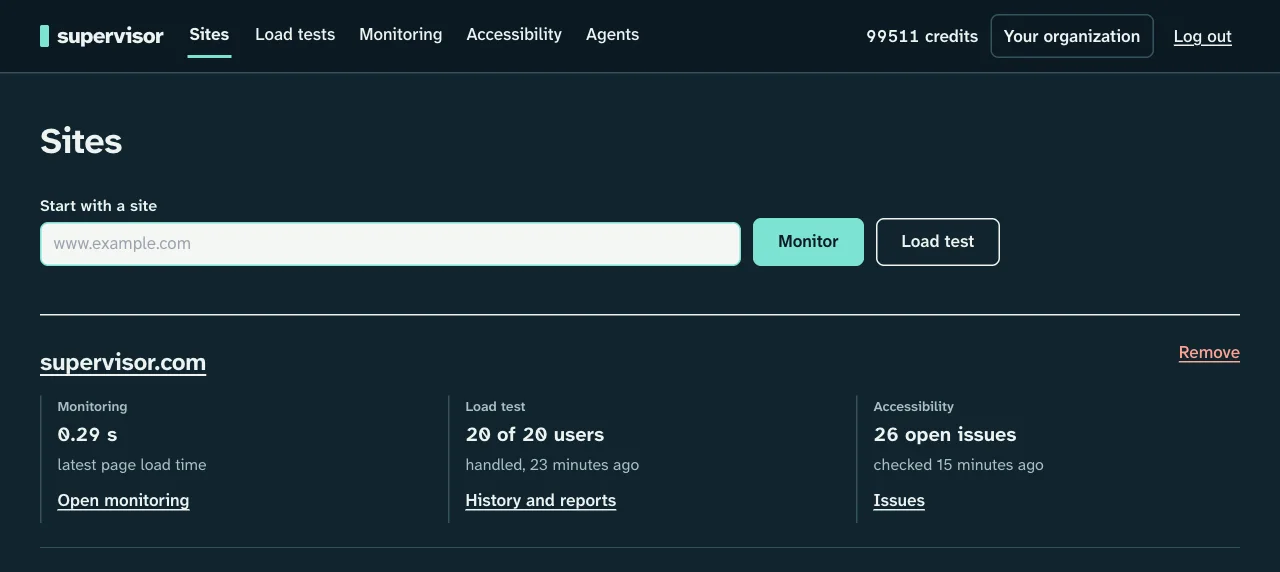
- Start with a site. Type an address and choose what to do with it: Monitor, Load test or Accessibility check. This is the quickest way to add a new site.
- Monitoring shows the latest page load time, or “Not monitored” with a link to start.
- Load test shows how many users the site handled in the latest test and how long ago. A warning appears while a test is running, and a “Regression” mark when the latest scheduled test was worse than the ones before it.
- Accessibility shows the number of open issues and when the site was last checked.
- Remove takes the site off your list.
Each line under a service is a link to that service’s page for the site.
The menu
The bar at the top is the same on every page.
| Menu item | What is there | Guide |
|---|---|---|
| Sites | All your sites with their latest results | This page |
| Load tests | Start a load test or a controlled test, see running tests, open a site’s history, journeys and schedules | Run a load test, Controlled test, Journeys, Scheduled load tests |
| Monitoring | Start a monitor and open the monitored sites | Monitoring |
| Accessibility | Checks, issues, the accessibility statement and feedback for each site | Accessibility |
| Agents | The AI agents and access tokens that can use your organization | Agents, credits and your account |
On a narrow screen the menu folds behind a “Menu” button.
Credits and the account menu
On the right of the bar are your credits, your organization’s name and “Log out”.
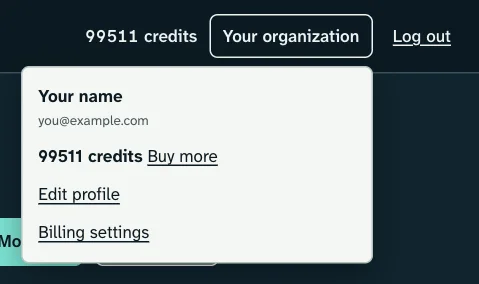
- Credits. The number is your organization’s balance. Clicking it opens the page where you buy more.
- The organization’s name opens the account menu: your name and email, the credits, “Edit profile” and “Billing settings”. If you belong to several organizations, the menu lists them and you switch by choosing another.
What is paid with what
Supervisor uses credits for work that is done once, and a card for work that keeps running.
| What | Paid with |
|---|---|
| A load test you start | Credits: 1 credit for every 10 users, charged when the test starts |
| A controlled test | Credits: 1 credit for every 10 user-minutes |
| A journey dry run | Free |
| A monitor of a journey | Credits, by the day |
| A monitor of a site’s pages | By card, by the month |
| A scheduled load test | By card, by the month |
| An accessibility check, started by you, your agent or a schedule | Credits: 5 for up to 30 pages, then 0.15 for each further page |
| AI review of a check, on a site without a subscription | Credits: 0.15 for each page reviewed |
| Supervisor Accessibility Compliance | By card or invoice, a fixed price by the month. It includes one scheduled check a month and a number of checks a day |
The page for each job shows its price before you start it. Pricing has the full list.
Good habits
- Add each site once, with the address your visitors use. If the site answers at
www.example.com, use that and notexample.com. - Verify the domain early. Load tests need it, and it takes a DNS change or a small file on the site.
- Keep one organization per company. Sites, credits, journeys and agents all belong to the organization, so colleagues see the same things.