The Accessibility section checks your site’s pages against WCAG, keeps a list of the issues found, and writes your accessibility statement from that list. Automated checks find only part of accessibility problems, so the list also has room for what a person finds. A check with no findings does not show that a site meets the requirements.
Open a site
Open “Accessibility” in the menu and choose a site. Every site has the same tabs.
| Tab | What it is for |
|---|---|
| Issues | The to-do list: what the checks found and what people added |
| Checks | Start a check, schedule checks, see past checks |
| Statement | The published accessibility statement, its settings and the plan |
| Feedback | What visitors sent through the statement’s feedback form |
| Reports | The monthly reports, for a site with a Supervisor Accessibility Compliance subscription |
“Open the statement” at the top right shows the public statement page.
Run a check
Open the “Checks” tab.
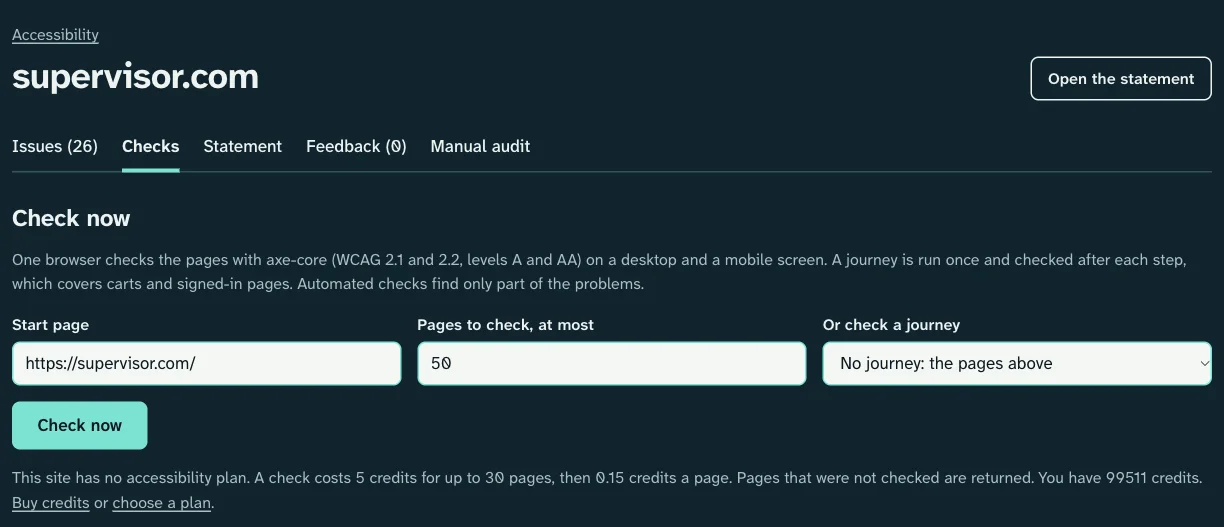
- Start page is where the check begins. From there it follows the site’s links.
- Pages to check, at most limits the size of the check. Each page is checked on a desktop and a mobile screen.
- Pages for the AI review appears on a site without a subscription. It buys the AI review for that many of the checked pages, at 0.15 credits for each page reviewed. Leave it at 0 for a check without the AI review. With a subscription the AI review is included and the field is not shown.
- Or check a journey appears when the site has journeys. The journey runs once and the page is checked after each step, which covers carts, signed-in pages and dialogs that link-following never reaches.
Press “Check now”. The check takes a few minutes. Reload the page to see it under “Past checks”.
The note under the button says what the check costs for this site. Without a subscription a check costs 5 credits for up to 30 pages and 0.15 credits for each page after that, and credits for pages that were not checked are returned. No domain verification is needed.
What Supervisor checks with lists the tools that run on every page.
Past and scheduled checks
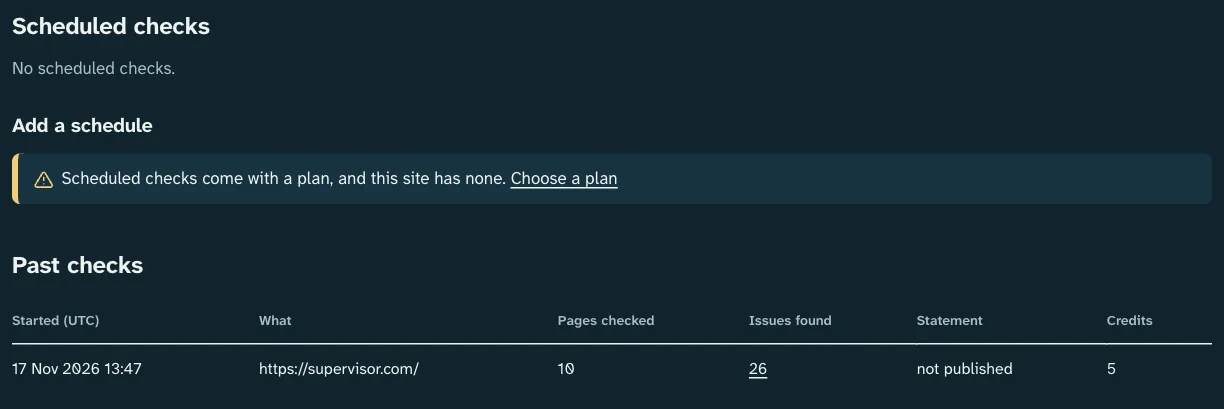
- Past checks lists each check with the pages checked, the issues found, what happened to the statement and the credits used.
- Scheduled checks run by themselves: monthly, weekly or daily, at an hour you choose. A scheduled check costs the same as a check you start, each time it runs: 5 credits for up to 30 pages and 0.15 credits for each page after that. Supervisor Accessibility Compliance is a separate subscription with a fixed monthly price. It includes one scheduled check a month together with the statement, the feedback form and the monthly report. If the subscription ends, the monthly schedules it paid for are switched off. Press “Switch on” beside one to run it again, paid with credits.
Work through the issues
The “Issues” tab is where the work happens.
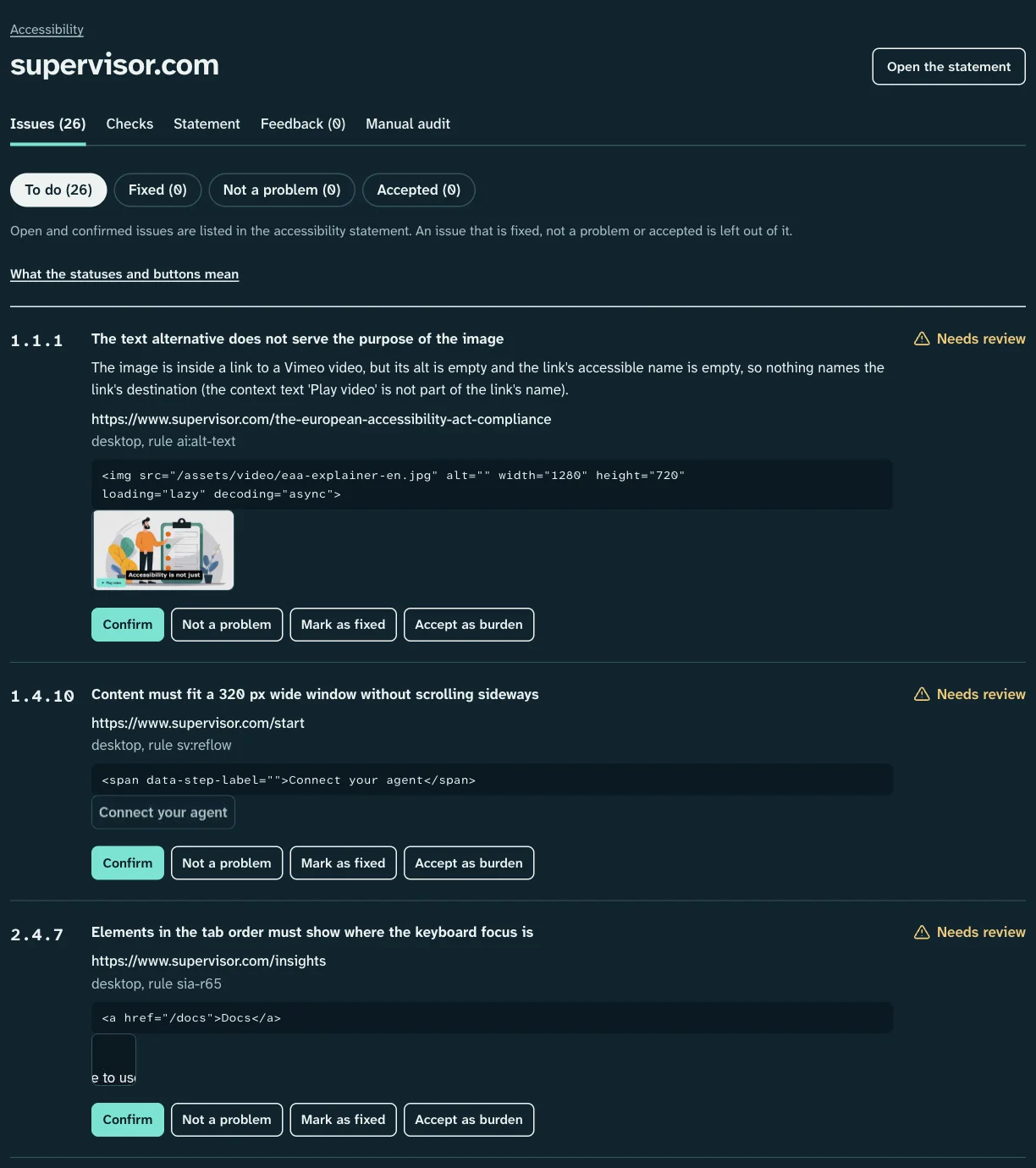
Each issue shows:
- the WCAG criterion it fails, such as 1.4.10
- what is wrong, in a sentence, and for a finding of the AI review the reason it gave
- where: the page, desktop or mobile, and the rule that found it
- the HTML of the element and a screenshot of it
- its status, and buttons to change it
The filters at the top switch between what is still to do and what has been closed.
Statuses and buttons
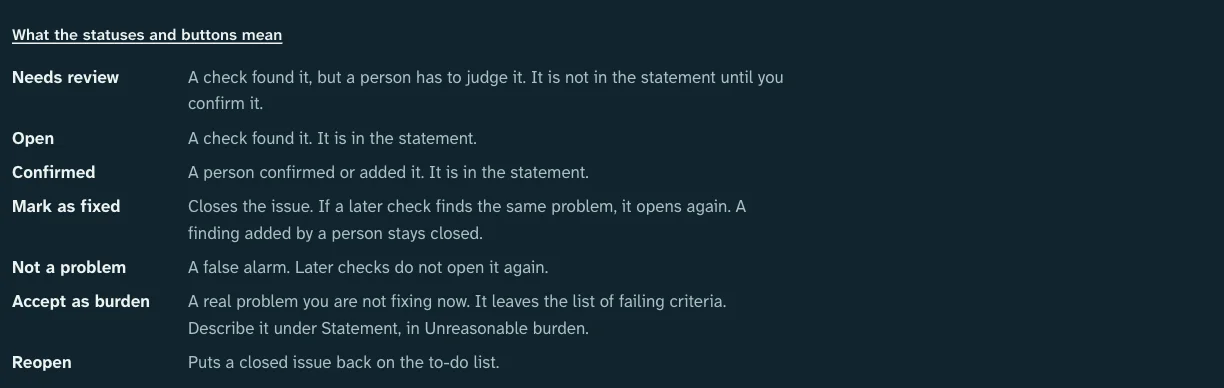
| Status or button | Meaning |
|---|---|
| Needs review | A check found it, but a person has to judge it. It is not in the statement until you confirm it. |
| Open | A check found it. It is in the statement. |
| Confirmed | A person confirmed or added it. It is in the statement. |
| Confirm | Says the finding is a real problem. |
| Mark as fixed | Closes the issue. If a later check finds the same problem, it opens again. A finding added by a person stays closed. |
| Not a problem | A false alarm. Later checks do not open it again. |
| Accept as burden | A real problem you are not fixing now. It leaves the list of failing criteria. Describe it on the Statement tab under “Unreasonable burden”. |
| Reopen | Puts a closed issue back on the to-do list. |
You do not have to mark fixed issues by hand. Fix the site and run a check: an issue the check no longer finds is closed by the check.
Add a finding
Checks cannot find keyboard traps, a confusing focus order, unclear instructions or missing captions. When you or an auditor find one, add it at the bottom of the Issues tab.
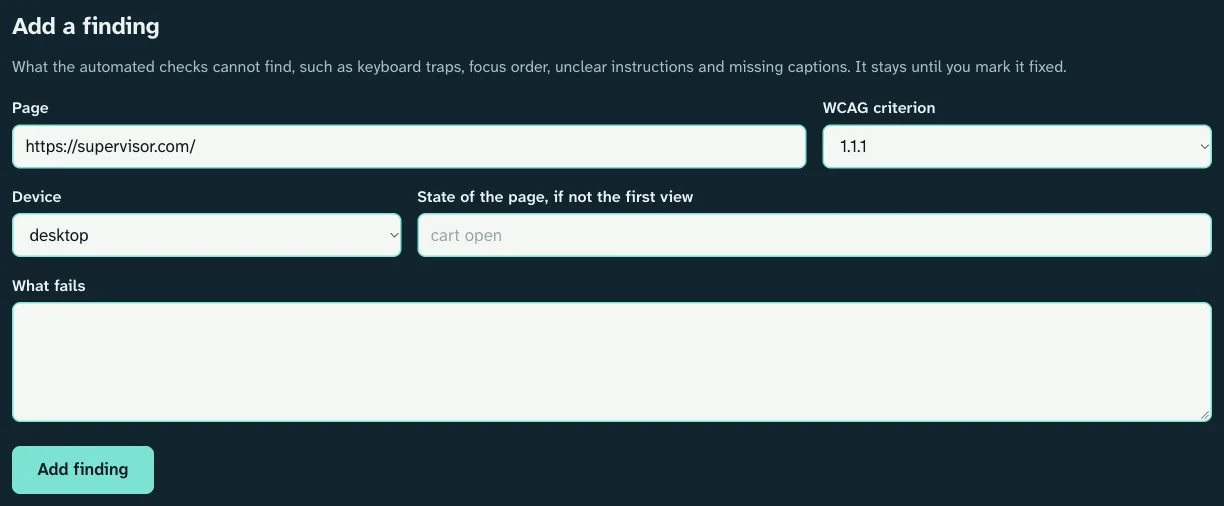
Give the page, the WCAG criterion, the device, the state of the page if it is not the first view (for example “cart open”) and what fails. The finding goes into the list as confirmed and stays until a person marks it fixed.
The statement
The “Statement” tab manages the public accessibility statement.
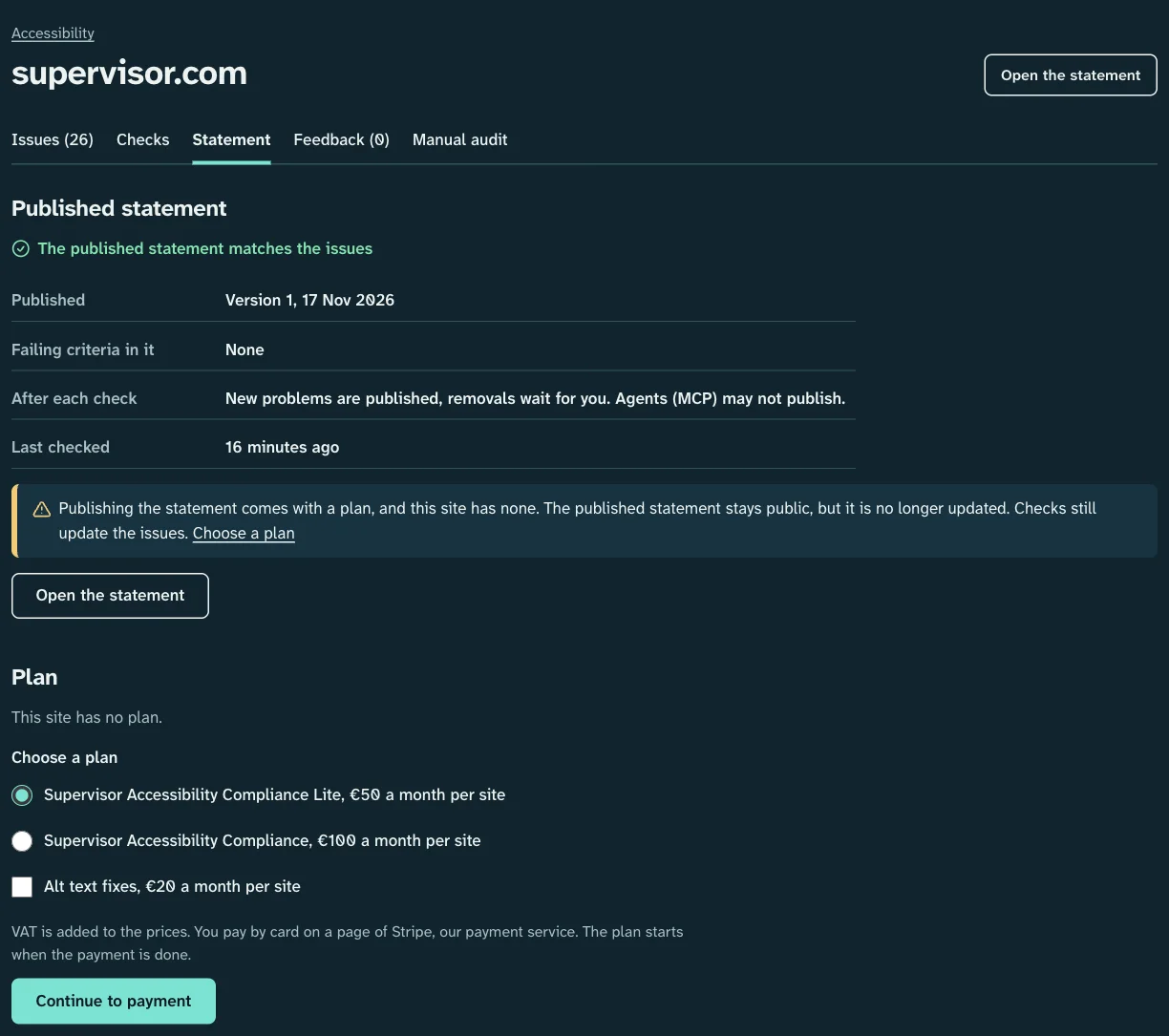
- Published statement shows the version that is public and the WCAG criteria it lists as failing. When the issues no longer match it, you review the changes here and publish a new version.
- Plan shows the site’s subscription. Publishing the statement and each new version of it comes with Supervisor Accessibility Compliance. A statement that is already published stays public if the subscription ends, but it is no longer updated.
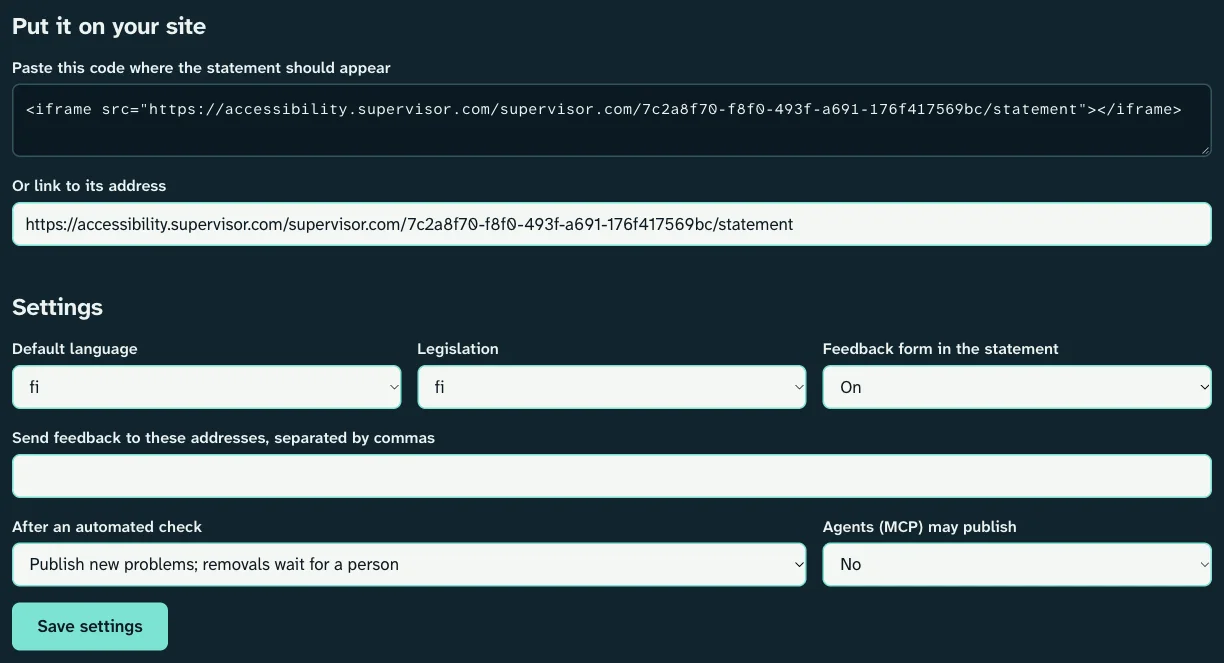
| Setting | What it means |
|---|---|
| Put it on your site | Code to paste where the statement should appear on your site, or the statement’s own address to link to. |
| Default language | The language the statement opens in: English, Finnish, Swedish, Norwegian or Danish. |
| Legislation | Which country’s statement template is used: Finland, Sweden, Norway or Denmark. |
| Feedback form in the statement | On or off. The law expects a way for visitors to report problems. |
| Send feedback to these addresses | Who gets visitors’ feedback by email. |
| After an automated check | “Publish new problems; removals wait for a person” is the default: the statement never hides a new problem, and never claims a fix nobody has looked at. “Everything waits for a person” and “Publish every change” are the other choices. |
| Agents (MCP) may publish | Whether a connected AI agent may publish the statement. Off unless you turn it on. |
| Contact paragraph | A paragraph on how people can give feedback, one for each language. |
| Unreasonable burden | Which parts have deficiencies you are not fixing now, when and how they will be fixed, and whether the content can be had another way. |
Feedback
The “Feedback” tab lists what visitors sent through the form in the statement. It also says whether the form is on and whether feedback is emailed to anyone, with a link to change that in the statement settings.
Good habits
- Start with “Needs review”. Those findings are waiting for a decision, and each one you confirm or dismiss makes the statement more exact.
- Fix shared parts first. A problem in the header or a product card shows up on every page. One fix clears it everywhere.
- Verify with a small check. After a fix, check only the pages you changed.
- Test what the tools cannot. Use the site with only a keyboard, at 200% zoom and in a narrow window, and add what you find.
- Keep the default “After an automated check” setting unless you have a reason. It publishes new problems at once and leaves removals to a person.
- Do not call the site compliant because a check found nothing. A check shows the problems it can find, and no more.