This guide covers the parts of the web app that are about your organization itself: who and what may use it, and how it is paid for.
The Agents page
“Agents” in the menu lists the apps and AI agents that can use Supervisor for your organization.
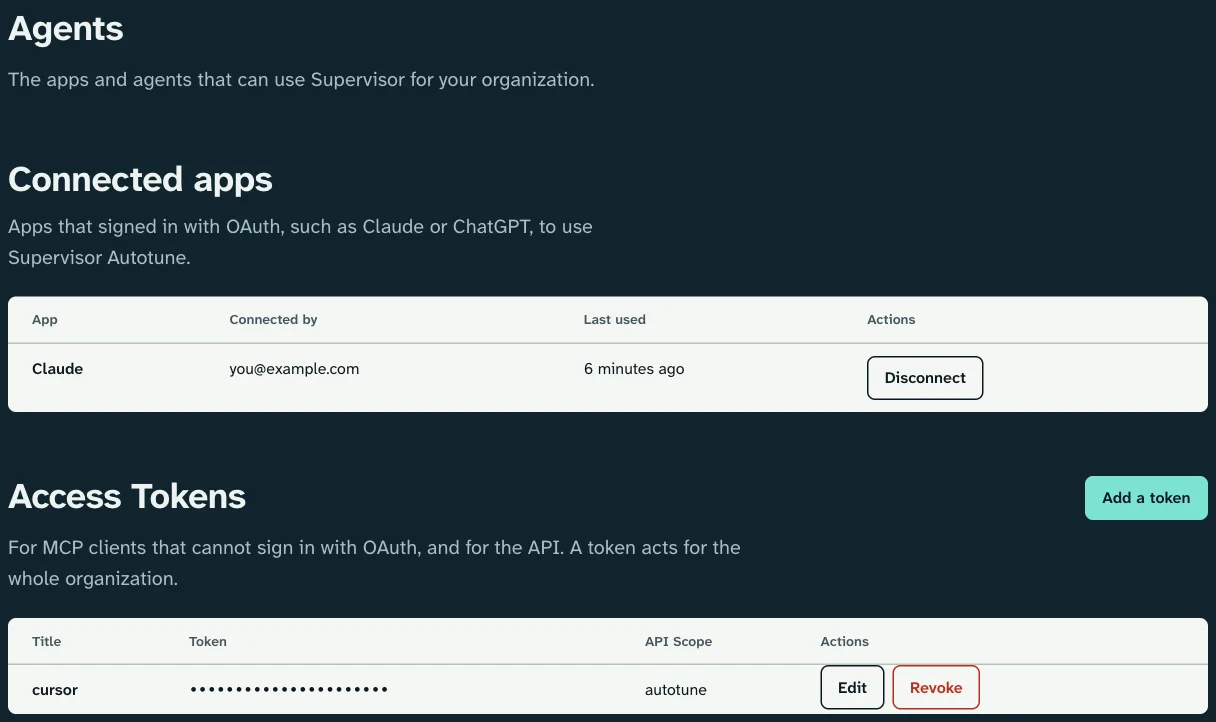
Connected apps
Apps that signed in to Supervisor, such as Claude, ChatGPT or Claude Code, appear here. Each row says which app it is, who connected it and when it was last used.
- Disconnect takes the app’s access away at once. Use it when someone leaves, or when you no longer use an agent.
- When no app is connected, the page shows the address to add as a connector:
https://api.supervisor.com/mcp.
Connect your agent explains how an agent signs in and what it can do then.
Access tokens
Some MCP clients cannot sign in. They use an access token, and so does the API.
- Press “Add a token”.
- Give it a name that says what uses it, for example
cursor. - Under “What the token may use”, leave
autotuneticked for an AI agent. The other choices are for the API. - Press “Save token”.
The token then appears in the list. Give it to the client as a bearer token.
- A token acts for the whole organization. Whoever has it can start tests and use credits. Treat it like a password.
- Make one token for each client, so you can revoke one without breaking the others.
- Revoke deletes a token. Do it at once if a token may have leaked.
Credits
The number in the top bar is your organization’s balance. Click it, or “Buy more” in the account menu, to buy credits.
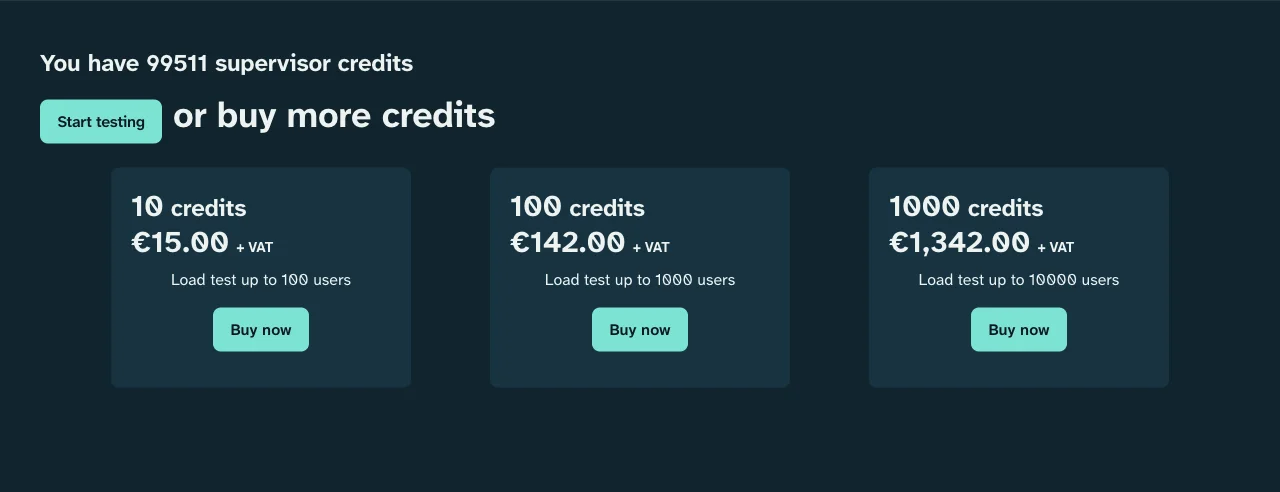
| Pack | Price | Enough for |
|---|---|---|
| 10 credits | €15 | A load test with up to 100 users |
| 100 credits | €142 | A load test with up to 1,000 users |
| 1,000 credits | €1,342 | Up to 10,000 users of load testing |
VAT is added. “Buy now” opens the payment page of Stripe, Supervisor’s payment service. If you have a coupon, redeem it in the “Have a coupon?” field on the load test start page.
Credits pay for load tests, controlled tests, journey monitors and accessibility checks. Each page shows the price before you start. A new account gets 5 free credits.
Billing settings
“Billing settings” in the account menu opens your billing page at Stripe. There you see your subscriptions, such as monitors and scheduled tests paid by card, change the payment card and the billing details, and download invoices.
Your profile and organizations
- Edit profile in the account menu changes your name, email and password.
- Organizations appear in the account menu when you belong to more than one. Choose another to switch. Sites, credits, journeys, agents and tokens all belong to the organization you are in.
- Log out is at the right end of the top bar.
Good habits
- Look at the Agents page now and then. Disconnect apps and revoke tokens that nobody uses.
- Never paste a token into a chat, a ticket or a script that others can read.
- Buy credits before a planned test day, so a test does not stop for lack of them.
- Use one organization for the team. Everyone then sees the same sites, results and credits.