In a controlled test nothing happens by itself. You decide how many users are on the site, when they start, when they pause and when the test ends, and you see the effect at once. Use it when the simple load test has told you roughly where the limit is and you want to look closer.
When to use it
- Find the limit by hand. Raise the users in small steps and stop at the point where load times start to climb.
- Hold a steady load. Keep the same users on the site for half an hour to see whether it slows down over time, which points at memory, connection pools or caches filling up.
- Make a spike. Jump from few users to many at once, as a campaign email or a ticket release would.
- Show a problem to someone. Keep the site at the load where it breaks while a developer watches the server.
- Try a fix without starting over. Pause, change the server, resume.
Open a test
On the Load tests page, type the address under “Controlled test” and press Open. Write the address the way it opens in a browser, with https:// and with www if your site uses it. The same button is on each site’s history page.
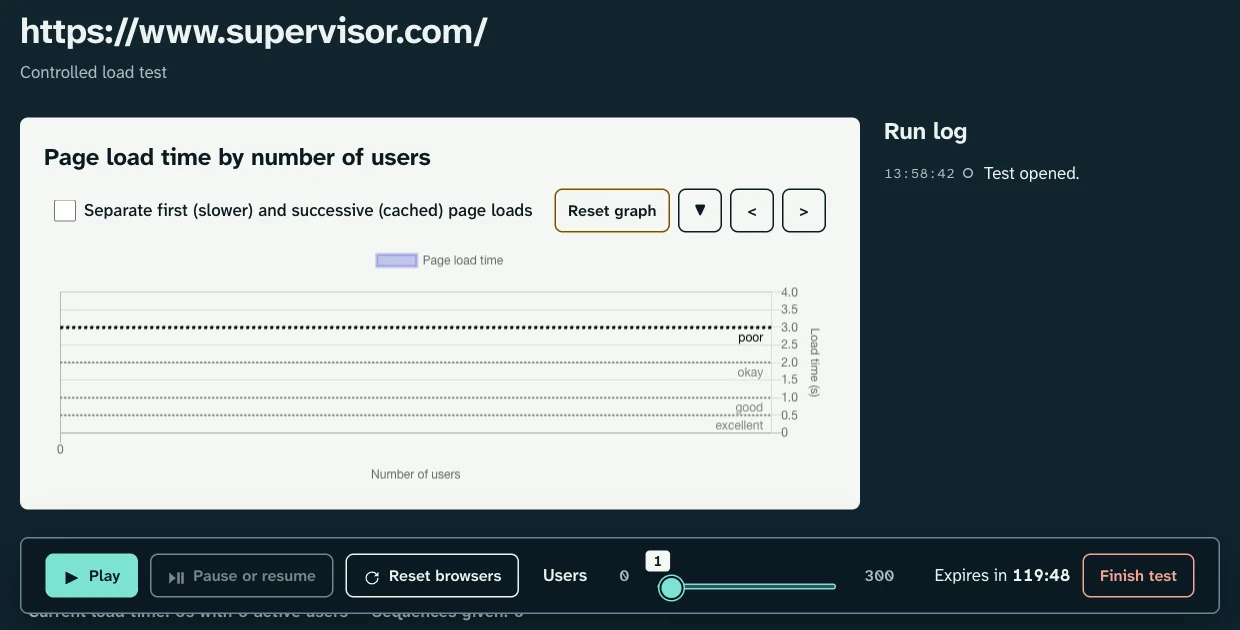
The test opens with no users playing. Nothing is sent to your site yet.
The screen
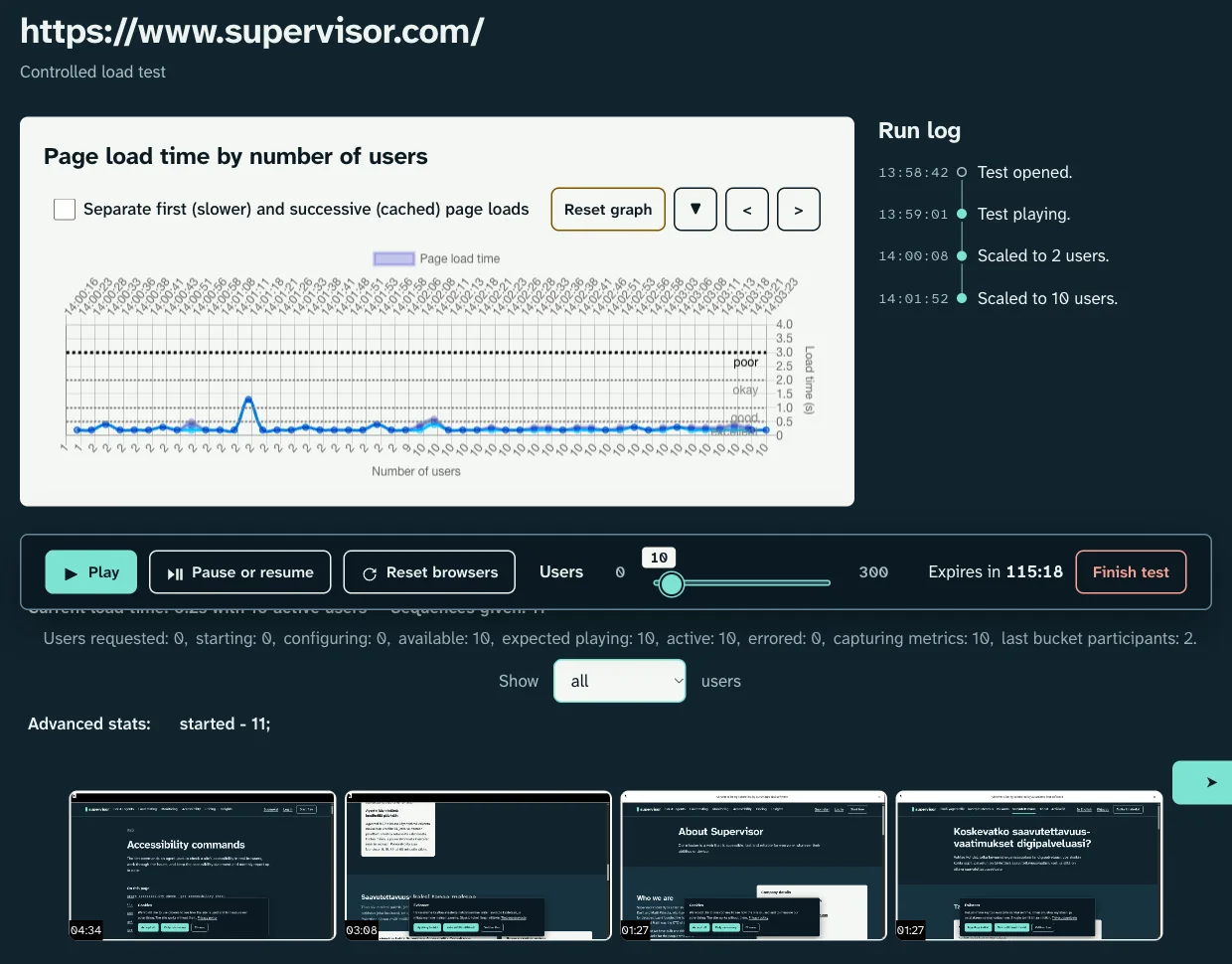
- Page load time by number of users is the main chart. Each point is the load time measured at that number of users. The dotted lines mark excellent, good, okay and poor.
- Separate first and successive page loads splits the line in two: a visitor’s first page, which loads everything, and the later pages, which come partly from the browser’s cache.
- Reset graph clears the chart, for example after you have changed something and want a clean picture.
- Run log on the right records what you did and when: opened, playing, scaled to 10 users, paused.
- Live browsers below the control bar shows the screens of the users, with counters for how many are starting, active and errored. “Show” filters the tiles to errored or active users.
- The control bar stays at the bottom of the window.
The control bar
| Control | What it does |
|---|---|
| Play | Opens the start settings, described below. “Go” starts the users. |
| Pause or resume | Stops all users where they are, or starts them again. |
| Reset browsers | Restarts the users’ browsers. |
| Users | The slider sets how many users are on the site, from 0 up to the most this test can hold. That is your organization’s limit, or fewer if your credits cover fewer. Move it at any time. The run log notes each change. |
| Expires in | The time left. A controlled test ends by itself when this time runs out. |
| Finish test | Ends the test and opens the result. |
Start settings
Play opens a small form. The first four lines are enough for most tests.
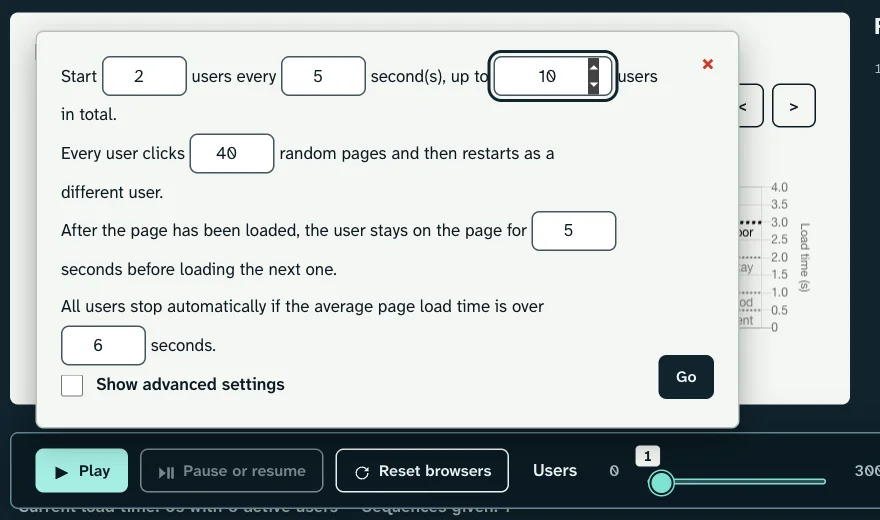
| Setting | What it means | Starts as |
|---|---|---|
| Start N users every N seconds, up to N users in total | How fast users arrive. 2 users every 5 seconds is gentle. 50 users every 1 second is a spike. | 1 user every 1 second |
| Every user clicks N random pages | How long one visit is. After that many pages the user starts again as a new visitor with an empty cache. | 40 pages |
| The user stays on the page for N seconds | The pause between pages. Shorter means more page loads from the same number of users. | 5 seconds |
| All users stop if the average page load time is over N seconds | The safety limit. The users stop when the site gets this slow. | 6 seconds |
Advanced settings
Tick “Show advanced settings” for the rest.
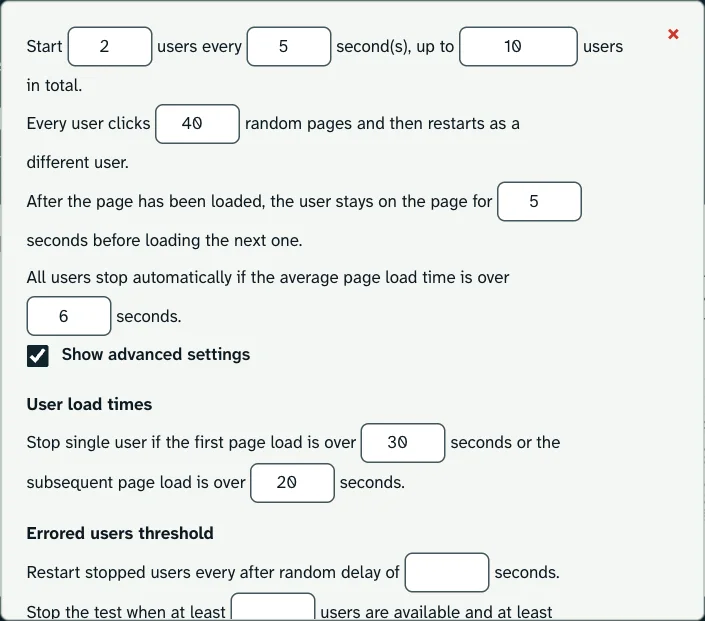
| Setting | What it means | Starts as |
|---|---|---|
| Stop single user if the first page load is over N seconds, or the subsequent page load is over N seconds | When one user gives up. A user that gives up counts as errored. | 30 and 20 seconds |
| Restart stopped users after a random delay of N seconds | Whether errored users come back, and how soon. Leave it empty to keep them stopped so you can look at them. | Empty |
| Stop the test when at least N users are available and at least N % of them are errored | Ends the test when too many users fail. | Empty |
| Blacklist (skip URLs which match) | Paths the users must not click, separated by |, for example /logout|/cart/clear. |
Empty |
| Whitelist (load URLs which match) | Only click links that contain one of these, for example /products/|/category/. |
Empty |
| User agent | Replaces the browsers’ user agent, so your analytics or firewall can recognise test traffic. | The browser’s own |
| Request latency, download speed, upload speed | Each user’s connection. Lower the speeds to test as a visitor on a slow mobile network. | 25 ms, 25 Mb/s, 10 Mb/s |
| Block Google Analytics | Keeps test visits out of your statistics. | On |
| Webcam video on, webcam audio on | Gives the browsers a camera picture and sound. It matters only for sites that use the camera or the microphone. | On |
A change to the settings applies when you press Go.
A test, step by step
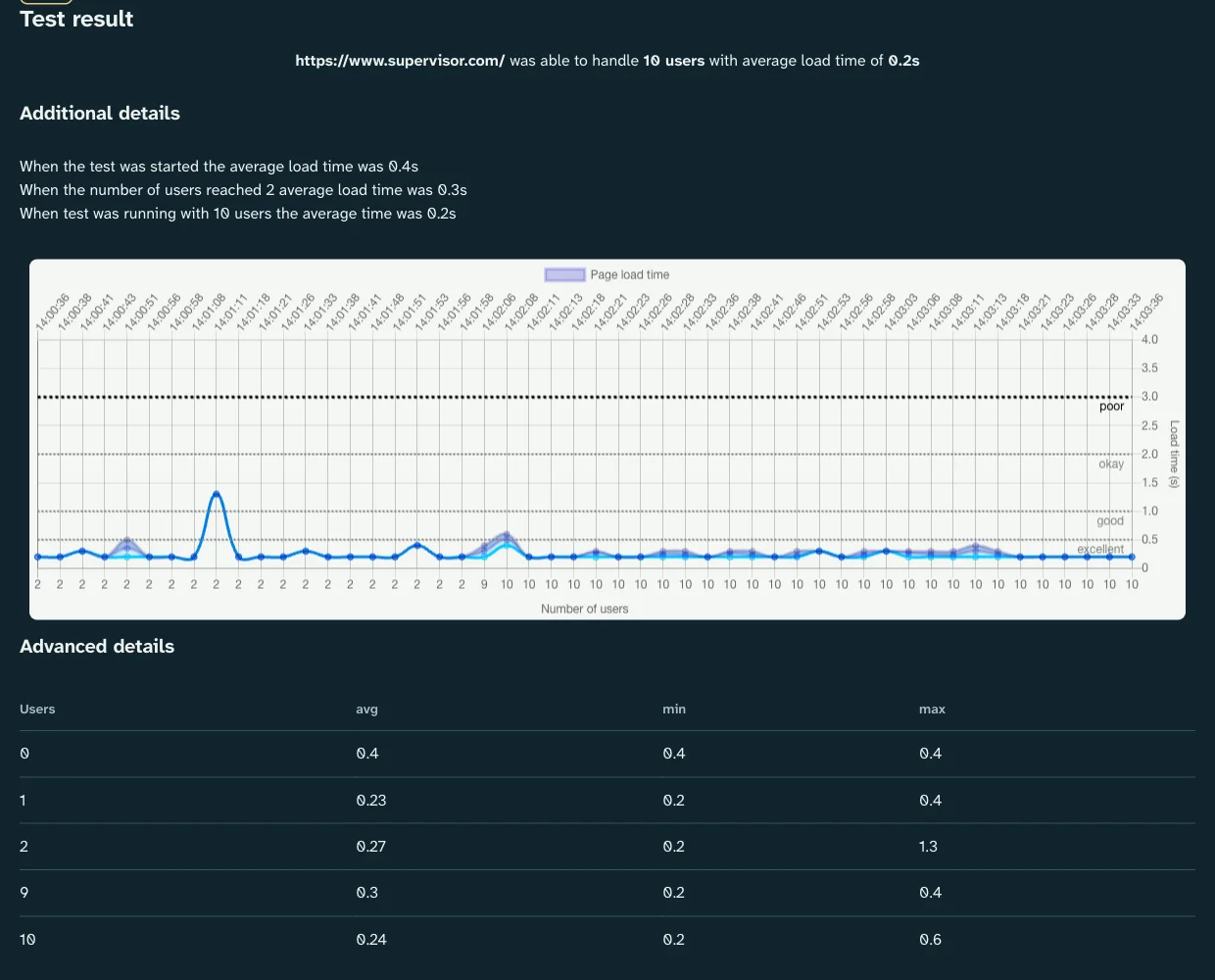
This is the test in the pictures: 10 users on supervisor.com.
- Open the test and press Play.
- Set “Start 2 users every 5 seconds” and press Go. The run log says “Test playing”.
- Watch the first points arrive on the chart. With 2 users the load time was about 0.3 seconds.
- Move the Users slider to 10. The run log says “Scaled to 10 users”, and new browsers appear under Live browsers.
- Hold the load for a few minutes and watch the line.
- Press Finish test.
The result
Finish test opens the result: how many users the site handled and the average load time, the same chart, and a table of the load time at each number of users.
A test that ends with no page loads measured is removed and leaves no result.
What it costs
A controlled test costs 1 credit for every 10 user-minutes. A user-minute is one user held by the test for one minute, whether the user is playing or paused. Ten users for ten minutes is 100 user-minutes, so 10 credits.
- Credits are taken as the test runs, about once a minute. What is left over is rounded up to a whole credit when the test ends.
- You need credits to start a test. One test can hold as many users as your credits cover for ten minutes: with 20 credits, up to 20 users. Your organization’s own limit applies too.
- When your credits run out, the test stops.
- The result page shows the user-minutes and the credits the test used.
The price is the same when your AI agent runs a controlled test. Finish the test when you have your answer.
Good habits
- Start small and step up. Add users in steps of 10 to 20% and wait a minute at each step. The chart needs a few measurements to settle.
- Watch the server at the same time. The chart shows that the site slows down. CPU, memory and the database show why.
- Use the whitelist to aim the load. If the product pages are the worry, send the users only there.
- Keep errored users stopped when you investigate. Leave “Restart stopped users” empty, filter the tiles to “errored only” and look at what their screens show.
- Do not leave it running. A forgotten test keeps using credits and keeps loading your site until it expires.